HDF Inwentaryzacja 6 — user manual
Archived version of the fixed assets inventory software.
Table of Contents
- License registration and deactivation
- Main window of HDF Inwentaryzacja 6
- Filters
- Program users
- Entering the required data in the „Słowniki” tab
- Fixed / low-value / legal assets
- Depreciation
- Stocktaking
- Reports
- Printing labels
- Documents
1. License registration and deactivation
After installing the program, you should register the program on the chosen computer. If you have purchased multiple licenses, repeat this step on every computer on which the program is ultimately to run.
To register the program, you must first purchase it – when placing your order, provide your e-mail address. This e-mail address serves as the login for software registration. If you order more than one license, you can specify an e-mail address for each user, or the same e-mail address for all users. The number of purchased licenses is recorded in our database and is subject to our administration.
After the payment is made, you will receive a password generated by e-mail, linked to the e-mail address provided at purchase and required for registration.
You can change your license password only through us – to do so, send us an e-mail at [email protected] requesting a change of the license password, and in reply you will receive a new, secure password generated automatically.
Note! The license password and login are not used to log in to the program, but only for license registration.
How to register HDF Inwentaryzacja 6?
An internet connection is required to register the software.
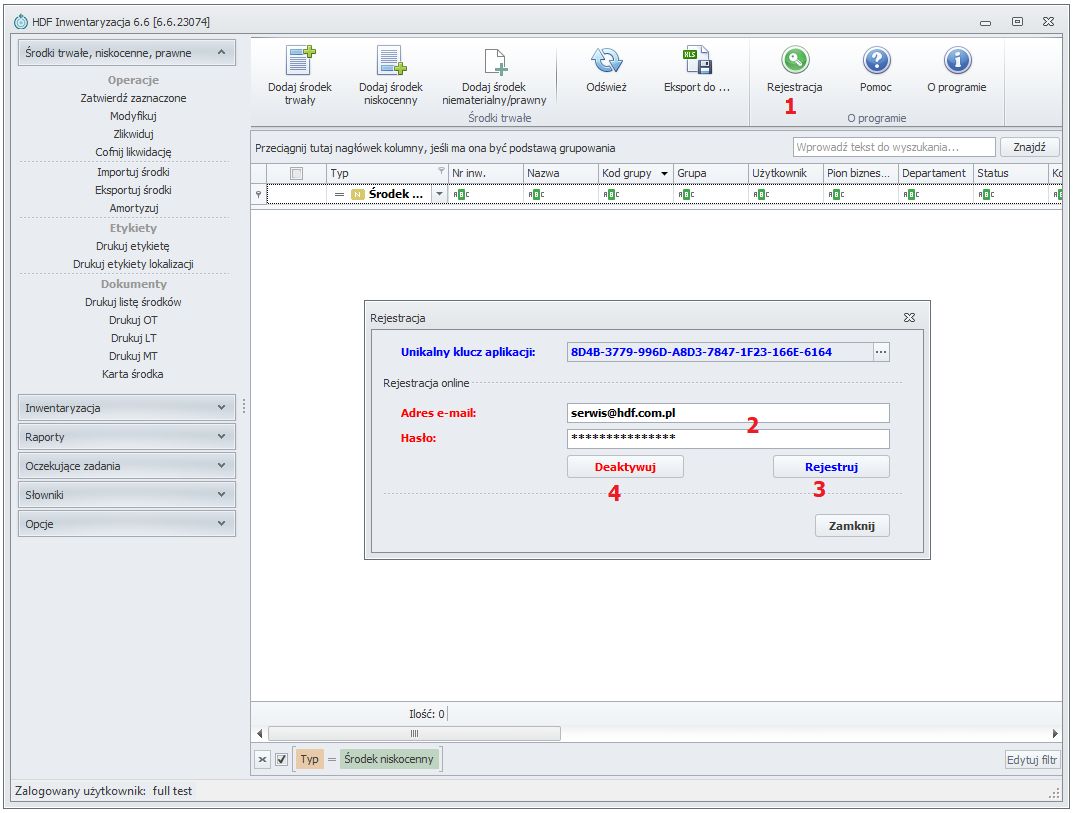
- Click the green field Rejestracja, located at the top on the left side of the menu. A registration dialog box will appear. (1)
- In the window, enter the e-mail address and password you received at the address provided during purchase. (2)
- Then click the button Rejestruj. (3)
- Your registration was successful. Restart the program.
- Log in with the default login and password (login: full, password: a) and use the program license on this computer. You can then change the default login and password by clicking Opcje → Użytkownicy aplikacji → Modyfikuj użytkownika.
If you have purchased more than one license, repeat this step on every computer on which they are to be located. Remember that each computer has a different license key (a unique application key), which is generated automatically when the license is registered on a given computer and is assigned to it.
If you want to change the workstation on which the program is to be used, you can deactivate the program license and register it on another computer using the same e-mail address and password as during the first registration.
How to deactivate the license on a chosen computer?
An internet connection is required to deactivate the license.
- Click the green field Rejestracja, located at the top on the left side of the menu. A registration dialog box will appear. (1)
- In the window, enter the e-mail address and password you received at the address provided during purchase. (2)
- Then click the button Deaktywuj. (4)
- The license has been successfully deactivated on the computer you are using.
Note! The unique application key is different on each computer. This means that if one of the computers is damaged, the license with that key remains active only on that computer and can be deactivated only from it. It is not possible to deactivate a license from a computer other than the one on which it is active. To transfer a license from an unavailable computer to a new one, contact us by e-mail ([email protected]) and we will deactivate it for you.
2. Main window of HDF Inwentaryzacja 6
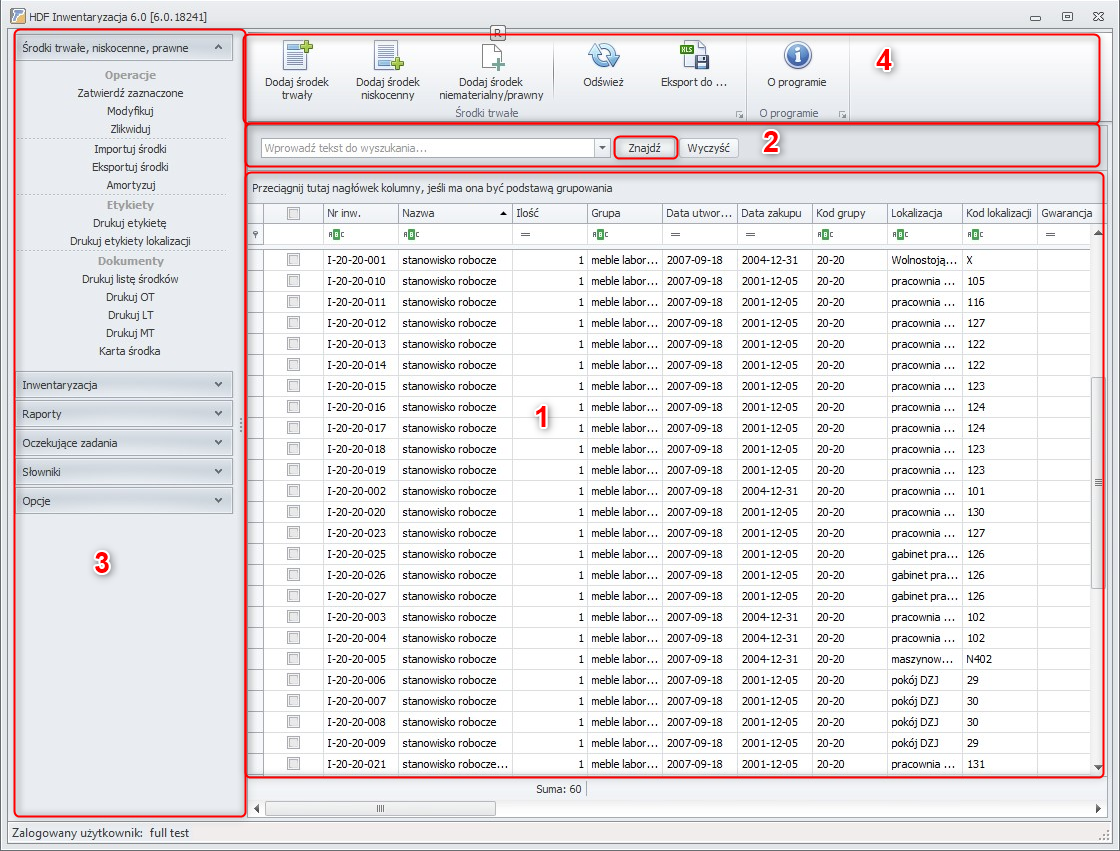
The main application window consists of the following parts:
2.1. Work area
The work area contains the list of fixed / low-value / legal assets that have been entered into the program. The list contains those assets that match the criteria defined in the search tool (area 2 of the main window). Unapproved assets are marked in gray, disposed assets in pink, and approved assets appear on a white background. Next to the name of each asset there is an icon indicating its type: ŚT – fixed asset, N – low-value asset, P – legal asset.
2.2. Quick filter bar
The bar allows easy searching for specific items and lets you filter the asset list in the work area of the main window as needed. After each change of filter criteria, click the „Znajdź” button.
This manual describes all the most important functions of the HDF Inwentaryzacja 6 application. To access them, you must be logged in to the program as a user with all permissions (by default this is the „full” user, password „a”).
2.3. Program menu
The program menu consists of the following elements:
2.3.1. Fixed assets, low-value assets, legal assets
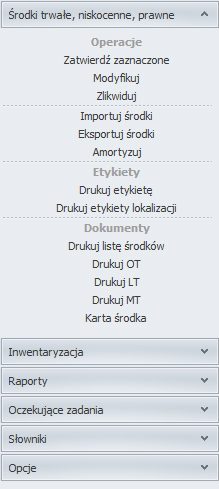
- Zatwierdź zaznaczone Approves the selected fixed / low-value / legal asset. If an asset is not approved, it will be included neither in depreciation nor in stocktaking. Approved assets appear in the work area on a white background, unapproved assets on a gray background.
- Modyfikuj Allows changes to be made to the (first) selected record.
- Zlikwiduj Disposes of the (first) record selected in the work area.
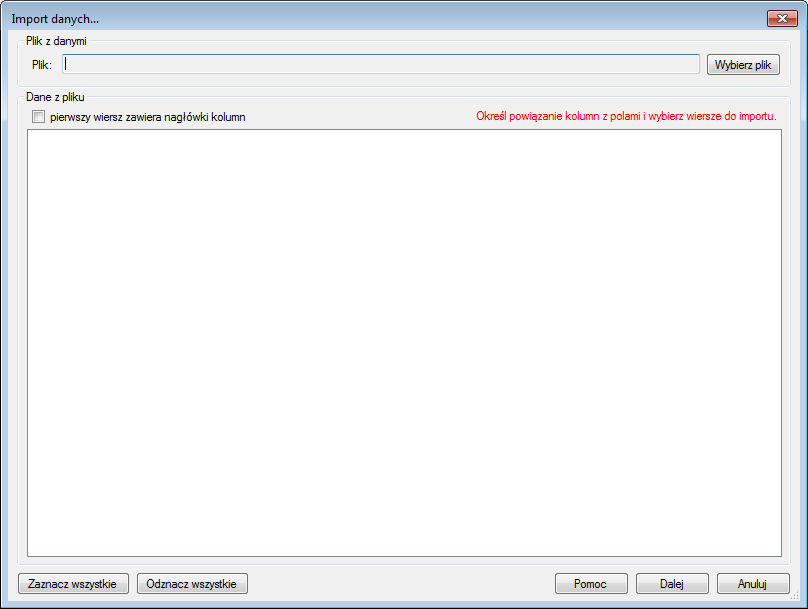
- Importuj środki Imports a list of assets from a text file.
- Eksportuj środki Exports selected data to a text file or to Microsoft Excel.
- Amortyzuj Runs depreciation of selected (or all) approved fixed assets for which depreciation criteria have been defined.
- Drukuj etykietę Prints labels for selected or all fixed and low-value assets, using the label templates defined in the program.
- Drukuj etykiety lokalizacji Prints labels for selected (or all) locations, using the label templates defined in the program.
- Drukuj listę środków Prints selected columns of the list containing the assets stored in the program.
- Drukuj OT Allows printing of the OT protocol for accepting a low-value asset.
- Drukuj LT Prints the LT protocol for disposing of an intangible and legal asset.
- Drukuj MT Allows printing of the MT asset transfer protocol.
- Karta środka Opens the asset card and allows printing a report for a specific low-value asset, together with all details of the given item: asset name, number, group, location, assigned user, etc.
2.3.2. Stocktaking
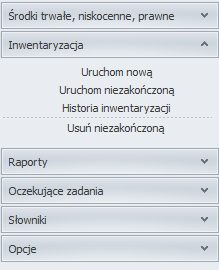
- Uruchom nową Launches a new stocktaking of all (or only selected) fixed and low-value assets.
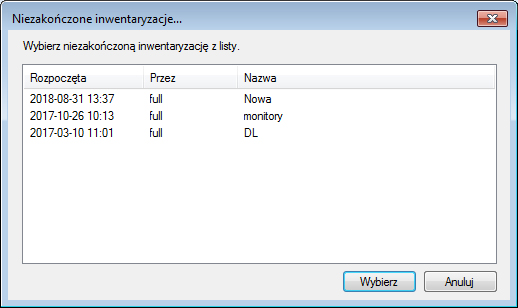
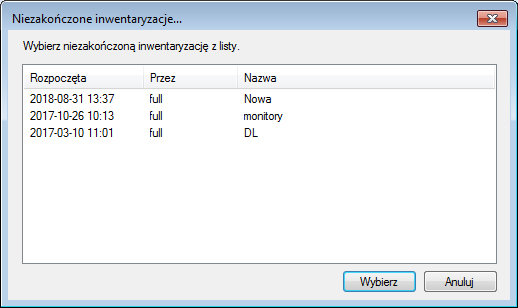
- Uruchom nieskończoną Launches a stocktaking that was started earlier but interrupted for some reason. One can be chosen from the list of unfinished stocktakings. The list contains the following data: the date and time the stocktaking started, the user who started it, and the stocktaking name.
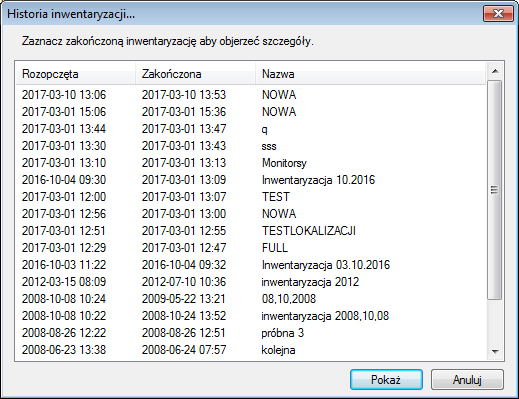
- Historia inwentaryzacji Provides access to the list (and details) of completed stocktakings.
- Usuń niezakończoną Removes a selected, unfinished stocktaking from the list.
2.3.3. Reports
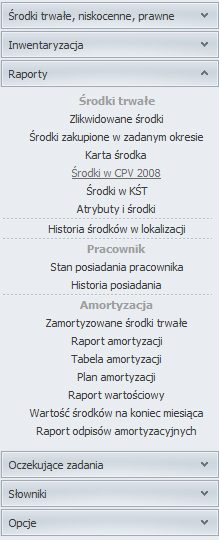
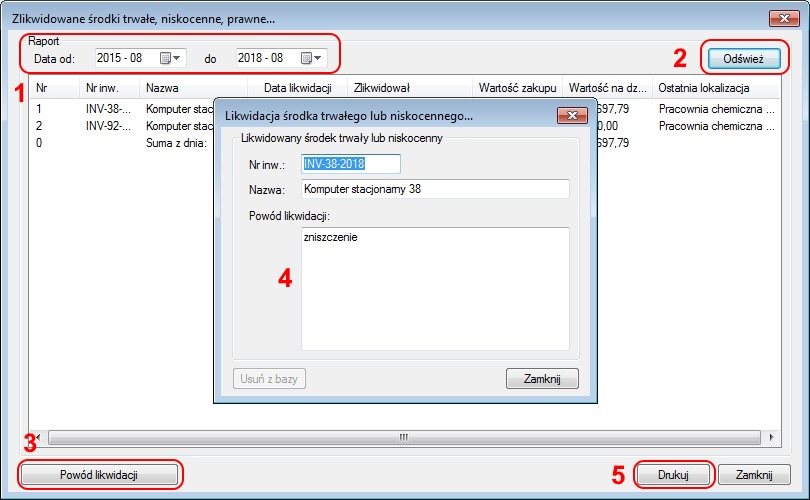
- Zlikwidowane środki Allows generating a list of fixed assets disposed of within a selected period and provides access to disposal justifications and information such as: the inventory number of the disposed asset, its name, disposal date, the person who disposed of it, the asset's purchase value, its value on the disposal date, and its last location. It also allows previewing the disposal reason for a selected asset.
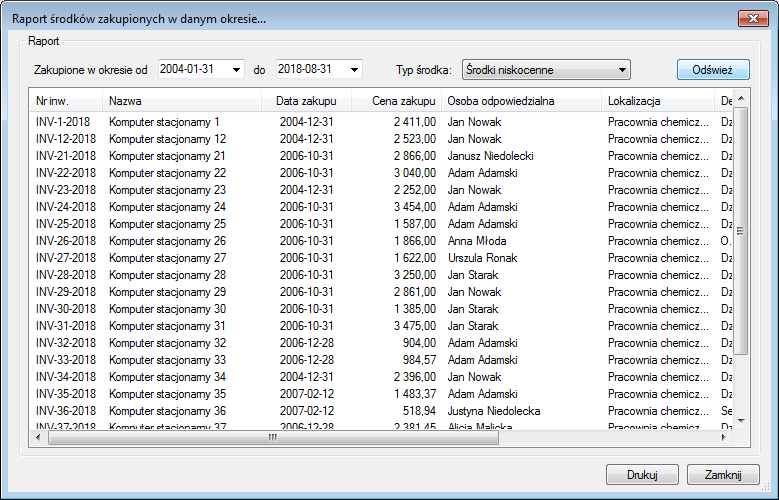
- Środki zakupione w zadanym okresie Allows generating and printing a report containing a list of purchased assets of a selected type (fixed, low-value, intangible/legal) or of all assets within a user-defined period.
- Karta środka Opens the asset card and allows printing a report for a specific low-value asset, together with all details of the given item: asset name, number, group, location, assigned user, date, purchase value, etc.
- Środki w CPV 2008 Allows creating and printing a report of assets contained in the Common Procurement Vocabulary (CPV 2008).
- Środki w KŚT Allows generating and printing a report of assets recorded in the nationwide Classification of Fixed Assets (KŚT).
- Historia środków w lokalizacji A list of assets present in a specific location within a user-selected time range. It also contains the inventory number of the assets, their name, and the operator assigned to them.
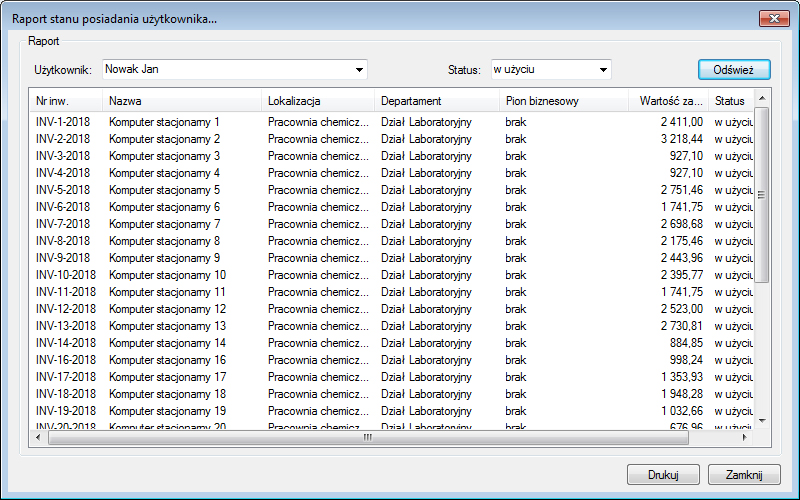
- Stan posiadania pracownika A report on the current status of all assets held by a selected employee.
- Historia posiadania A list of assets held by a selected employee within a specific time range.
- Zamortyzowane środki trwałe Generates a list (and allows printing it) of depreciated fixed assets for a user-selected period (the report may include tax depreciation).
- Raport amortyzacji Generates and prints a report containing a list of assets of a given group / department / business division depreciated within a user-selected period.
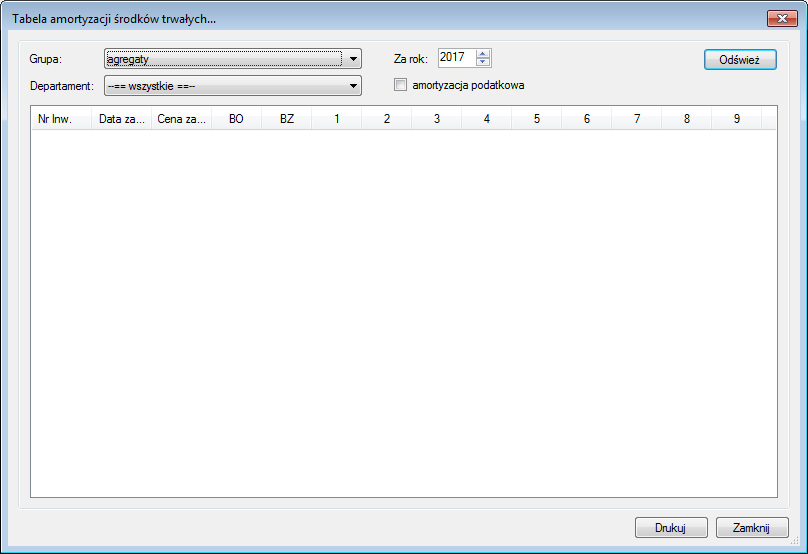
- Tabela amortyzacji Allows generating a list of assets from a given group depreciated in a selected year. The tables contain data from depreciation carried out in successive months of the defined year, plus a summary in the form of an opening and closing balance.
- Plan amortyzacji Allows planning a list of fixed assets scheduled for depreciation. It contains information on the purchase date and value, as well as the opening and closing balance.
- Raport wartościowy A report of selected asset groups for a given period (month, year). It contains information on gross and net value, accumulated depreciation, and tax depreciation.
- Wartość środków na koniec miesiąca Allows summarizing the value of assets in a selected month and printing the report.
- Raport odpisów amortyzacyjnych Allows printing a report of depreciation write-offs and the purchase value of assets before and after the write-off in a selected month.
- Atrybuty i środki Allows generating and printing a report of all attributes and assets, taking into account their value and status (options: all, in use, disposed, pending).
2.3.4. Pending tasks
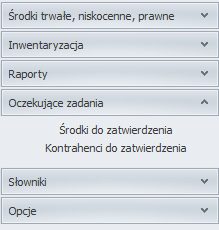
- Środki do zatwierdzenia Opens the list of unapproved assets. Selected records can be approved.
- Kontrahenci do zatwierdzenia Opens the list of unapproved contractors. Selected records can be approved.
2.3.5. Dictionaries
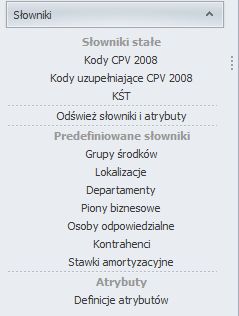
- Kody CPV 2008 — Displays the tree of CPV codes and allows easy searching for codes by number or name. Each code group can be expanded to see its subgroups.
- Kody uzupełniające CPV 2008 — Opens the list of the supplementary CPV 2008 dictionary. Here too, items can be easily searched using the search bar.
- KŚT — Displays the tree of the Classification of Fixed Assets, along with a code search tool.
- Odśwież słowniki i atrybuty — Allows refreshing the libraries of dictionaries and attributes if any changes or updates have been made to them.
- Grupy środków — Allows adding, editing, and deleting asset groups, and provides access to the list of previously defined groups.
- Lokalizacje — Allows adding, editing, and deleting locations, and provides access to the list of all previously defined locations.
- Departamenty — Allows adding, editing, and deleting departments, and provides access to the list of previously defined departments.
- Piony biznesowe — Opens a window with a list of saved business divisions. It also allows adding, editing, and deleting business divisions.
- Osoby odpowiedzialne — Opens a window with a list of defined persons responsible for fixed and low-value assets, and allows adding, editing, and deleting persons previously defined as responsible.
- Kontrahenci — Opens a window with a list of defined contractors. It also allows adding, editing, and deleting contractors.
- Stawki amortyzacyjne — Opens a window with a list of depreciation rates, including KŚT symbols. It also allows adding, editing, and deleting rates.
- Definicje atrybutów — Opens a window with a list of attribute values. It also allows adding, editing, and deleting attributes.
2.3.6. Options
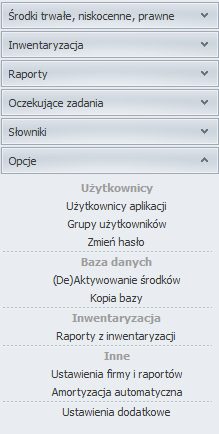
- Użytkownicy aplikacji Opens a window with a list of users and their basic data. It also allows adding / editing / deleting / activating / deactivating and restoring users. You can also search for a user, with (or without) deleted and inactive users included.
- Grupy użytkowników Opens a window with a list of user groups. The list contains group names and information about the number of users assigned to them and the number of permissions available to each group. In this window you can also add / edit / delete user groups.
- Zmień hasło Allows changing the password of a specific user after entering the appropriate data.
- (De)Aktywowanie środków Activation of current assets or deactivation of disposed assets.
- Kopia bazy Allows copying the database to a file.
- Raporty z inwentaryzacji Allows generating reports of a selected type. The available report types are: summary of stocktaking discrepancies in warehouses, status before stocktaking, mismatched quantities, location changes, matching quantities, status after stocktaking, physical count, physical count (full).
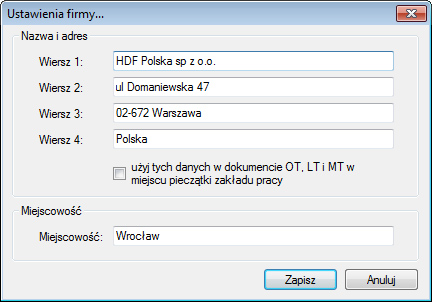
- Ustawienia firmy i raportów Allows entering the company name and address and using this data in documents: OT, LT, and MT, in place of the workplace stamp.
- Amortyzacja automatyczna Opens a window in which you can define the dates on which the program performs automatic stocktaking.
- Ustawienia dodatkowe Allows, among other things, editing the application colors for a specific user and changing field and column options.
2.4. Action bar
The action bar has the following buttons:
- Dodaj środek trwały – Enters the selected asset into the program.
- Dodaj środek niskocenny – Enters the selected asset into the program.
- Dodaj środek niematerialny / prawny – Enters the selected asset into the program.
- Odśwież – Refreshes the asset list after changes have been made.
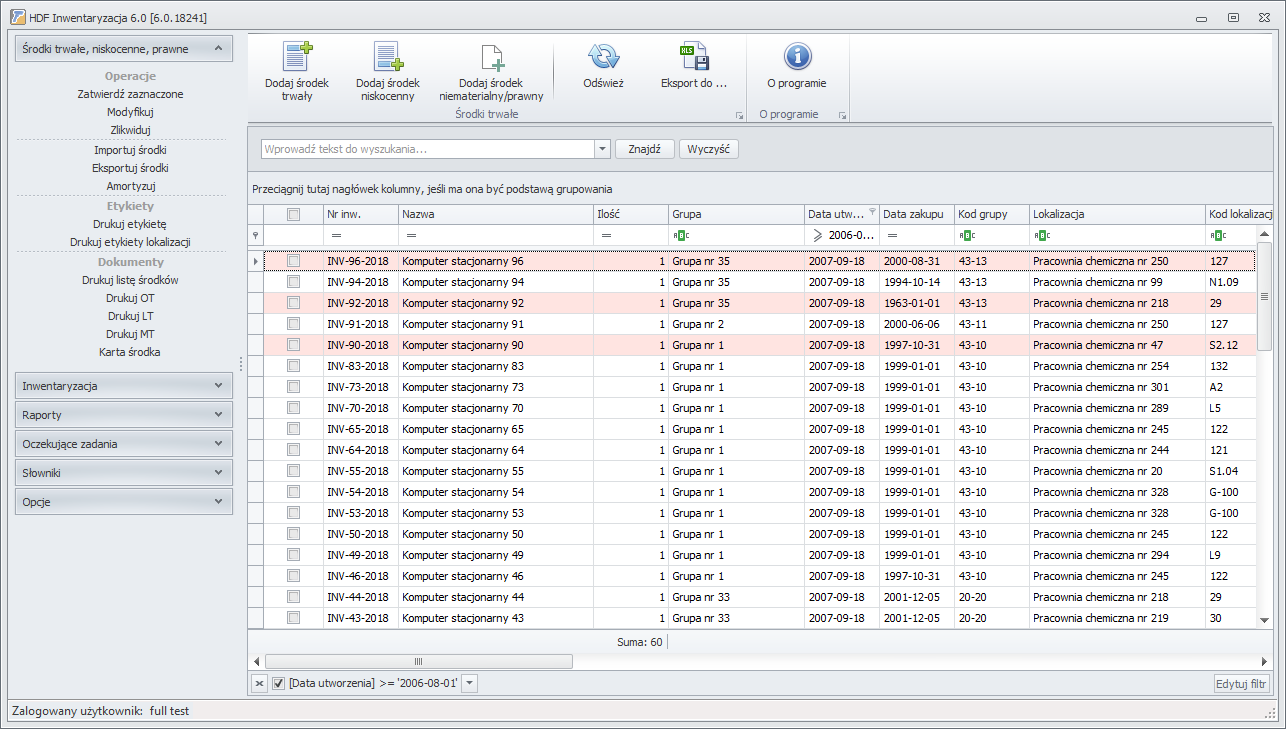
- Eksport do – Allows exporting the asset list to a file or document, e.g. in MS Excel.
- O programie – Contains detailed information about HDF Inwentaryzacja 6.
3. Filters
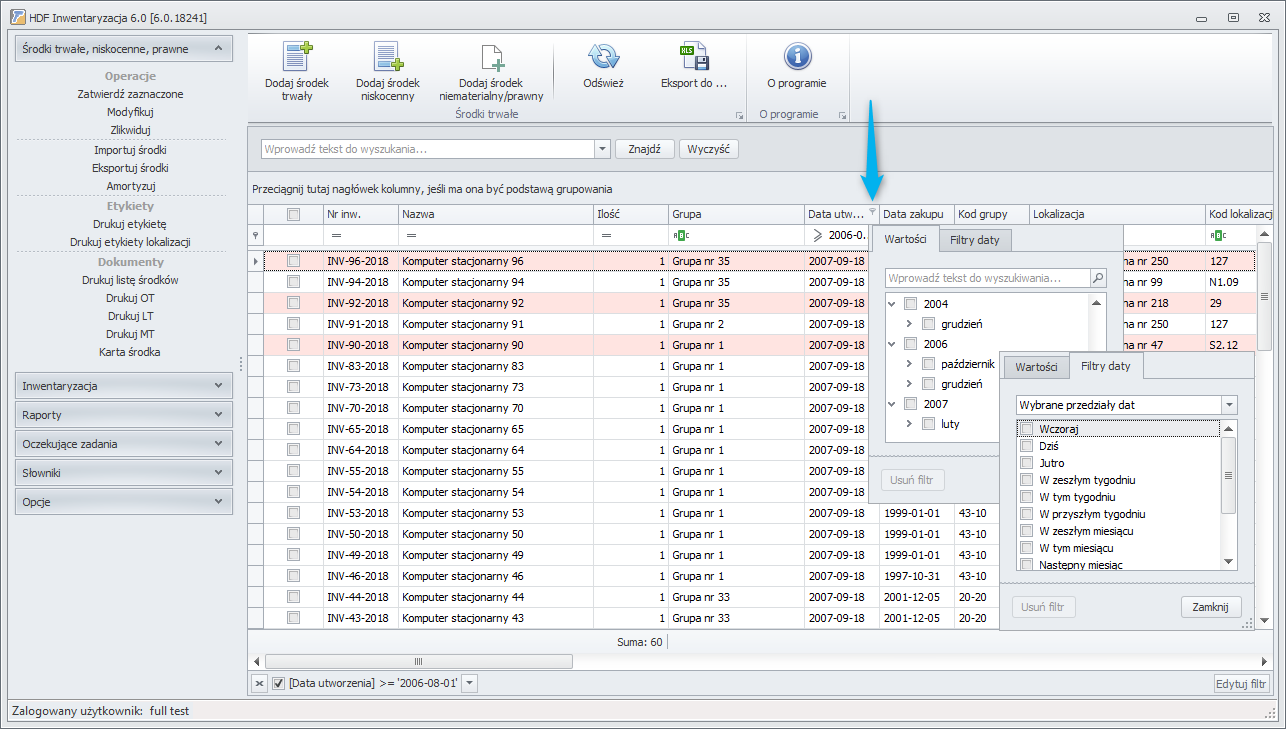
Filters added to each column allow precise definition of the criteria by which the asset list in the work area of the main window is generated.
By clicking the filter icon next to the relevant column (e.g. the date column), a window with values and filters is displayed.
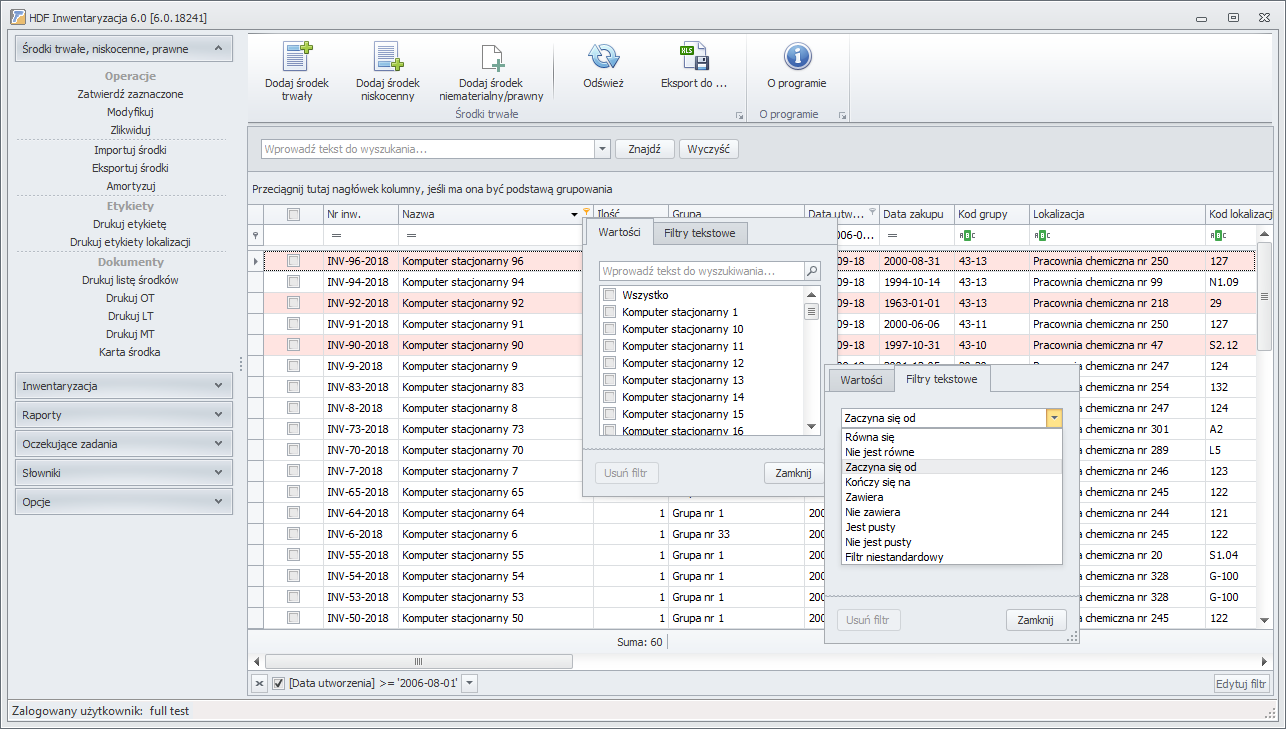
Items in the table can also be filtered by selecting:
- Asset names
- Quantity
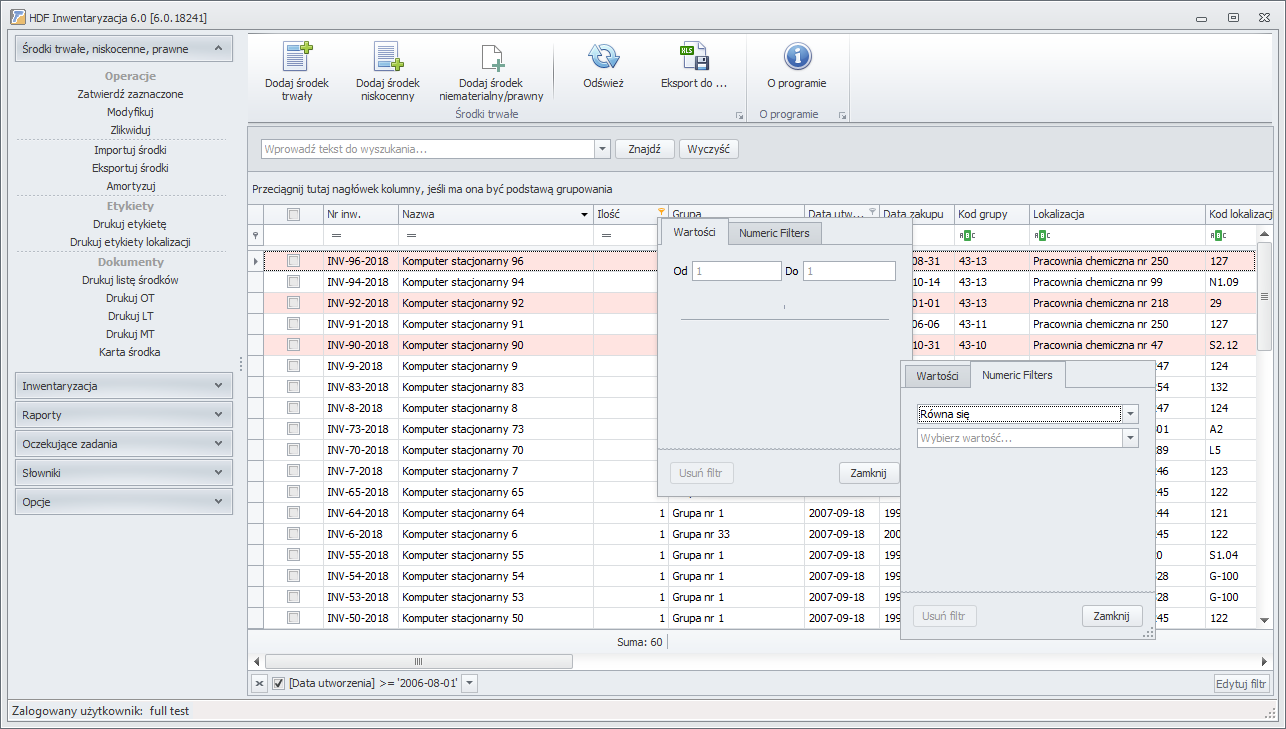
After entering the appropriate value in the selected filter window, only the matching items will remain in the list in the main window.
Once the first filter is applied, you can edit its values in any way using the „Edytuj filtr” button at the bottom of the screen.
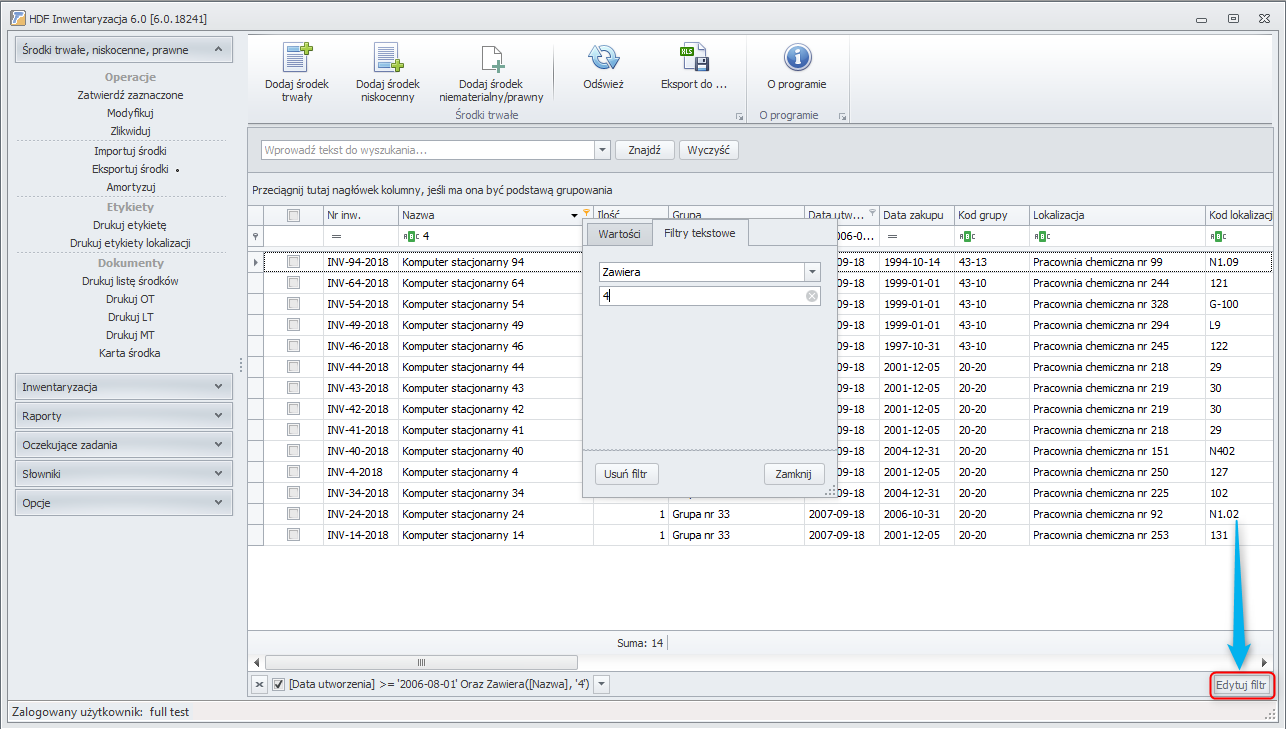
After clicking the „Edytuj filtr” button, the filter wizard window is displayed. This lets you add individual filters for different columns in one place and search for complex items in an advanced way.
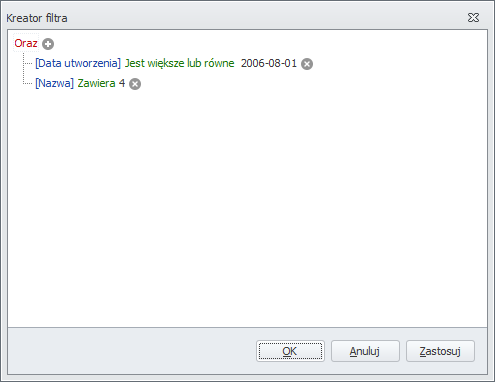
For example, we can search for an item:
- belonging to a specific asset name (e.g. „zamrażarka”),
- in a specific quantity (e.g. „jest równe 1”),
- with an individual inventory number (e.g. „I-43-10-035”).
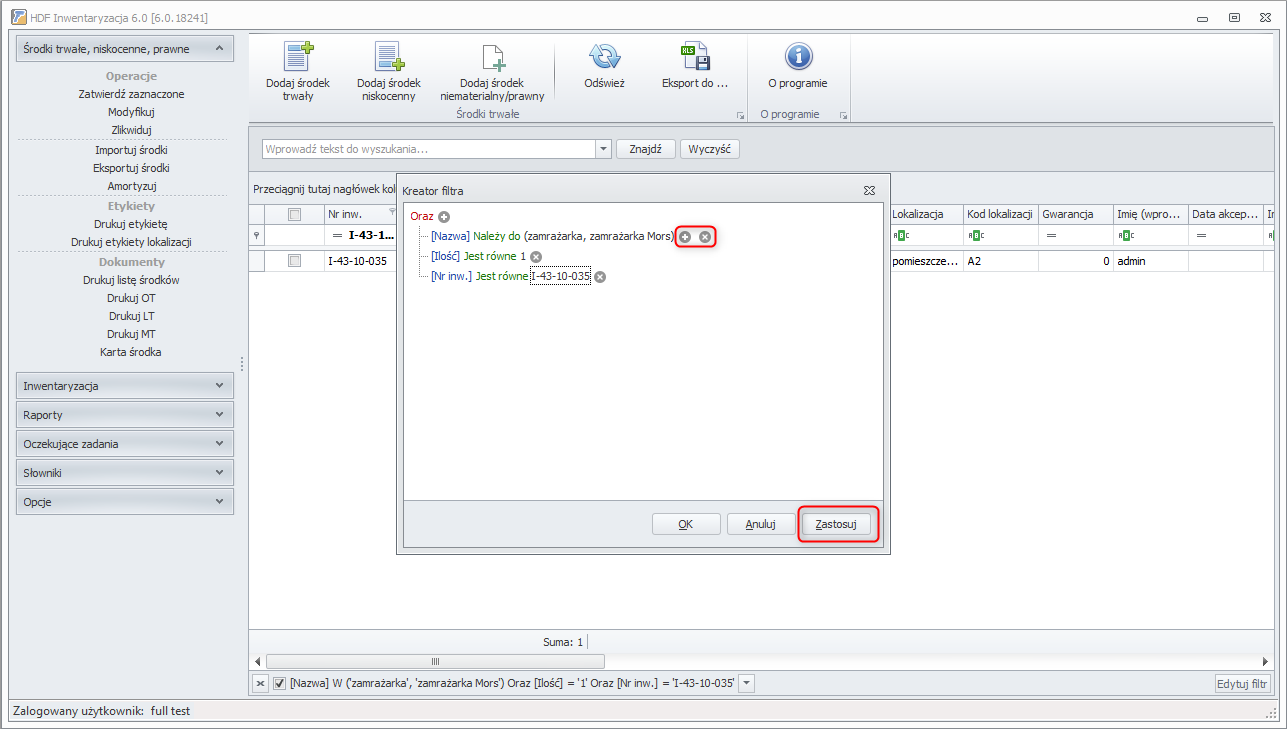
We can add filters using the „+” button and delete them using the „x” button. After making changes, select the „Zastosuj” button to filter the asset database.
4. Program users
Only persons who have been authorized (who have a login, access password, and scope of permissions) may use the program.
4.1. Scope of permissions
HDF Inwentaryzacja 6 allows defining a multi-level permission system. This means that every program user must be assigned to a specific group with selected permissions for access to various program functions and the data stored in it. By default, four access groups with different permissions are defined in the program – „full” (password „a”, has all possible permissions), administrator (has permissions to administer the program), accountant, operator (basic scope of permissions).
4.2. Adding a new permission group
To add a new permission group:
- In the program menu, in the „Opcje” tab, select „Grupy użytkowników”.
- Then, in the new window, select „Dodaj grupę”.
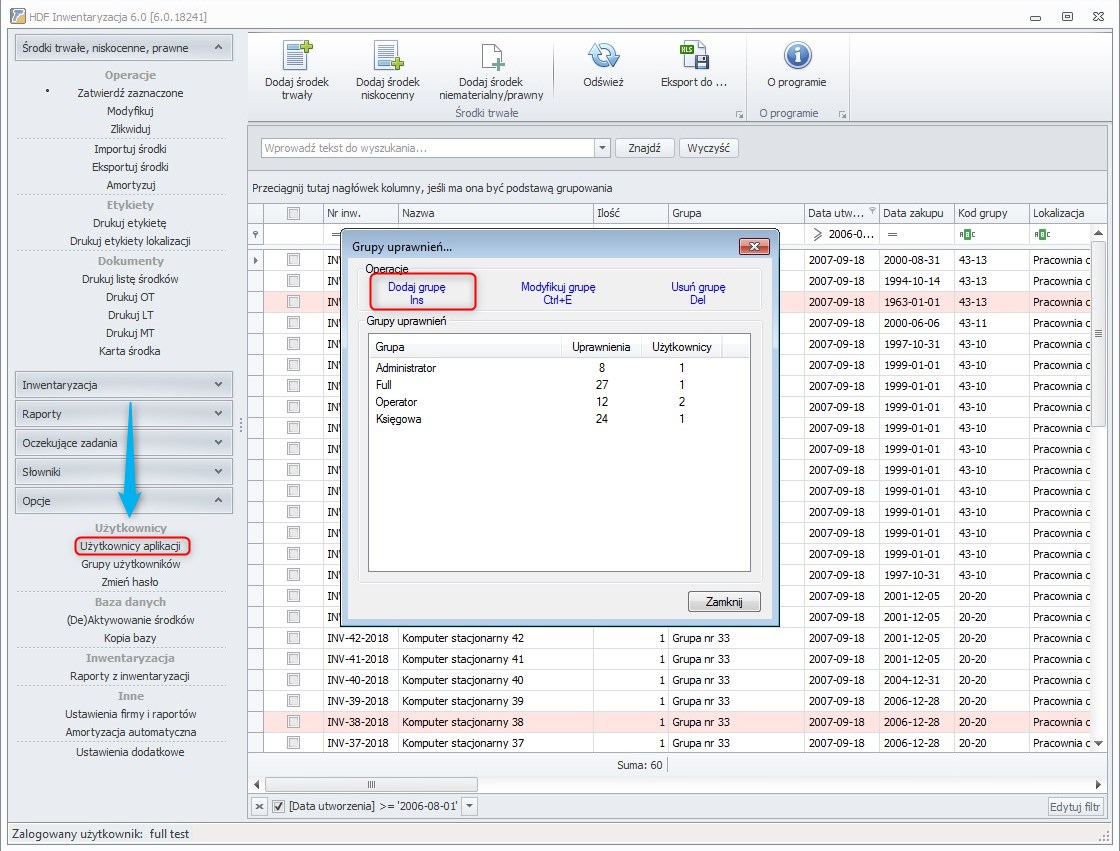
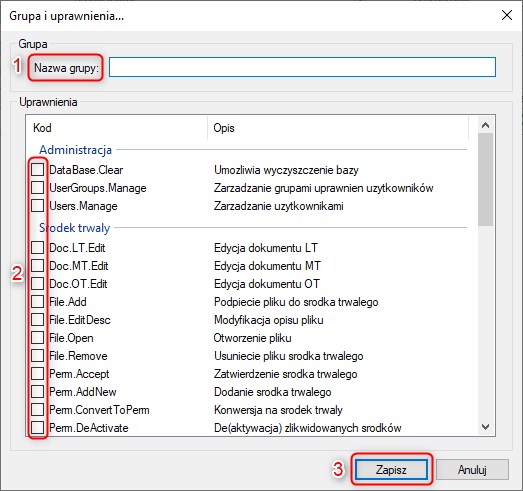
A new window with a list of permissions will appear. In the „Nazwa grupy” field [point 1 in the illustration below], enter a name for the group being defined, e.g. „pracownicy magazynu”. Then, by checking the appropriate boxes, select the permissions granted to the group [point 2 in the illustration below]. To save the entered data, click „Zapisz” [point 3 in the illustration below]. The name of the new group will appear in the „Grupy uprawnień” window.
4.3. Changing the permission scope of a group
To make changes to the scope of permissions granted to a group:
- In the program menu, in the „Opcje” tab, select „Grupy użytkowników” [Opcje → Grupy użytkowników].
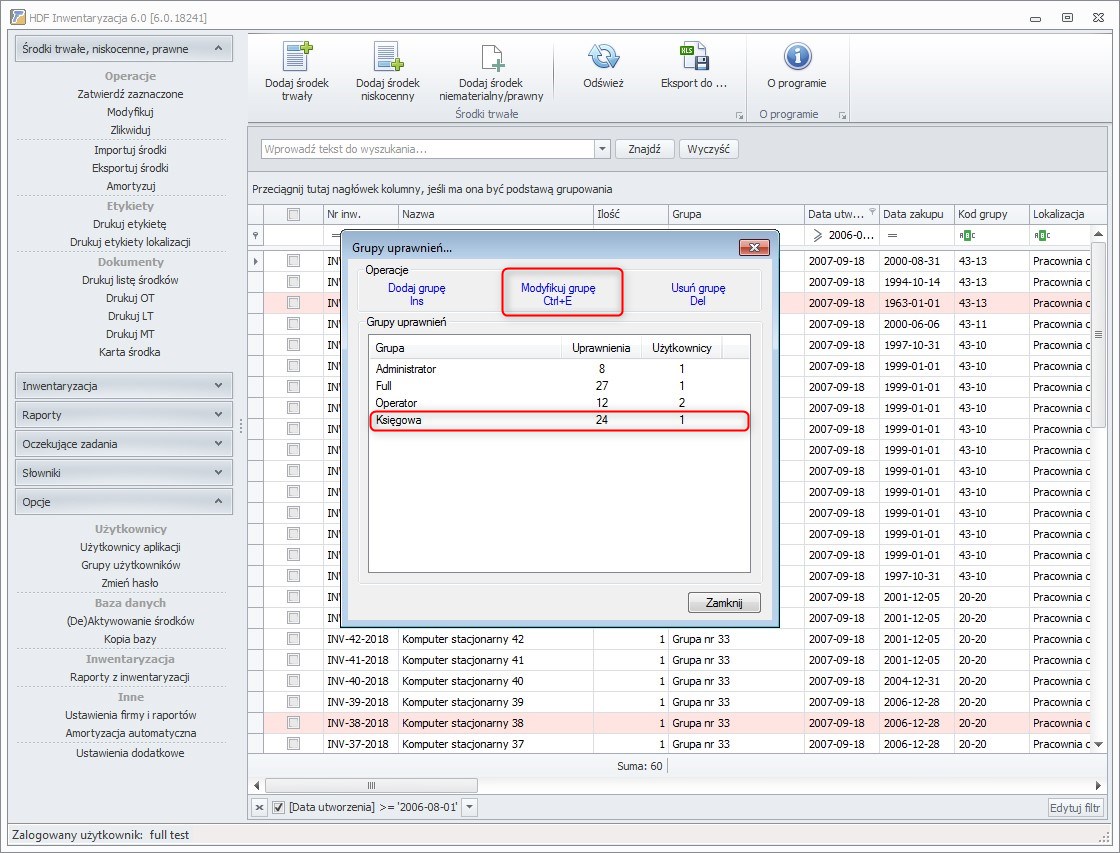
- In the „Grupy uprawnień” window, select the group whose permission scope is to be changed, then click „Modyfikuj grupę”.
- Make the desired changes by checking (or unchecking) the appropriate checkboxes.
- Confirm the changes made by clicking „Zapisz”.
4.4. Viewing the permission scope of a group
To find out exactly what permissions a group has:
- In the program menu, in the „Opcje” tab, select „Grupy użytkowników” [Opcje → Grupy użytkowników].
- The „Grupy uprawnień” window will appear, containing a list of permission groups along with the specific number of permissions granted to each group and the number of users assigned to it.
- To view the details, in the „Grupy uprawnień” window select the group whose permission scope you want to review, then click „Modyfikuj grupę”.
4.5. Deleting permission groups
To delete a permission group:
- In the program menu, in the „Opcje” tab, select „Grupy użytkowników” [Opcje → Grupy użytkowników].
- In the „Grupy uprawnień” window, select the group to be deleted, then click „Usuń grupę”.
4.6. User list
To view the list of program users, in the „Opcje” tab select „Użytkownicy aplikacji”. The „Użytkownicy” window will open, containing the user list. If both checkboxes are selected (i.e. „Pokaż usuniętych”, „Pokaż nieaktywnych”), the list contains all users – active users are shown in black, inactive users in blue, and deleted users in red.
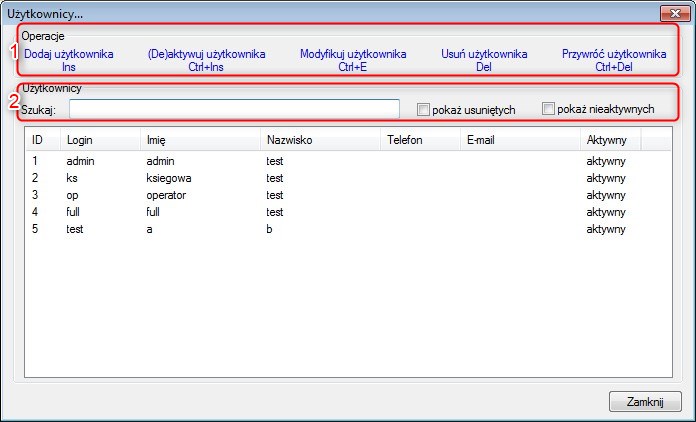
The user list contains the following information: the user's ordinal number, login, first name, last name, phone, e-mail, and activity status.
In the „Użytkownicy” window, in addition to the user list, there are also:
- A user search tool [2], allowing a user to be found by login, first name, last name, phone number, or e-mail. Next to the search tool there are options for creating a list of deleted and inactive users.
- Function buttons [1], which allow the following operations: adding users, editing their data, activating and deactivating users, restoring users, and deleting users.
The user list can be filtered so that it contains only data meeting specific criteria. To do this, use the user search tool (located above the list) and the checkboxes: „Pokaż usuniętych” (a list of deleted users will be displayed), „Pokaż nieaktywnych” (a list of inactive users will be displayed).
4.7. Adding a new user
To enter into the program the persons authorized to use it:
- In the „Opcje” tab, select „Użytkownicy aplikacji”.
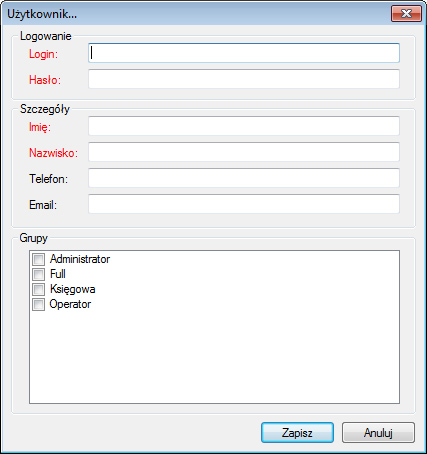
- In the „Użytkownicy” window, click the „Dodaj użytkownika” button. A new window will appear in which you must fill in the required fields (fields marked in red are mandatory) and assign the employee to a group with specific permissions.
- After confirming the entered data, the program will ask you to repeat the entered password, and will then add the new user to the list.
4.8. Editing user data
To change a user's data:
- In the „Opcje” tab, select „Użytkownicy aplikacji”.
- In the „Użytkownicy” window, select the user whose data is to be changed and click the „Modyfikuj użytkownika” button – a new window will appear into which you can enter the desired changes.
- Confirm the changed data by clicking „Zapisz”.
4.9. Activating / deactivating a user
Each user can be deactivated for a certain period and then activated again. This function means that an inactive user cannot use the program until reactivated, but their login is in a sense „blocked” – a new user with the same login cannot be entered. After activation, the user regains the right to access the program and the permissions previously granted to them.
4.10. Deleting a user
To delete a user, in the „Opcje” tab select „Użytkownicy aplikacji”. The „Użytkownicy” window will appear, in which you should select the user to be deleted and then click „Usuń użytkownika”.
4.11. Restoring a user
To restore a previously deleted user, in the „Opcje” tab select „Użytkownicy aplikacji”. The „Użytkownicy” window will appear, in which you should:
- Select the „Pokaż usuniętych” option.
- Select the user to be restored, then click „Przywróć użytkownika”.
5. Entering the required data in the „Słowniki” tab
For the program to work correctly, before you start using it you should define the basic categories that will then be used when working with the application.
In the „Słowniki” tab you should define:
- Asset groups
- Locations
- Departments
- Business divisions
- Responsible persons
- Contractors
- Depreciation rates
5.1. Adding new data in the „Słowniki” tab
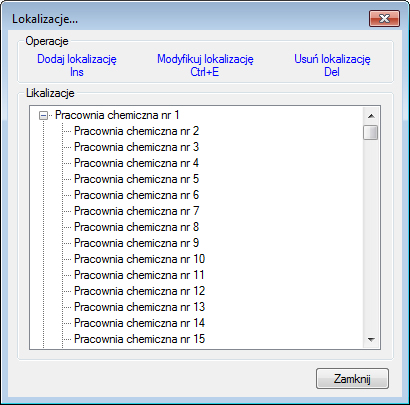
Below, adding new data in the „Słowniki” tab is shown using the example of defining a new location (in each category this process is very similar):
- Expand the menu of the „Słowniki” tab.
- Select one of the categories listed above (in this example it is the „Lokalizacje” category).
- In the category window, click „Dodaj lokalizacje”.
- In the new window, fill in the necessary fields (here: code, name, and — for the „Lokalizacje” category — also „Lokalizacja nadrzędna”. The parent location is the first location entered into the program. When defining subsequent locations, it can be selected from a drop-down list).
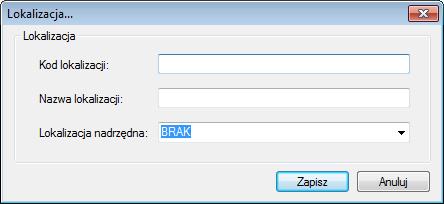
- Confirm the entered data.
6. Fixed / low-value / legal assets
6.1. Adding fixed assets
To enter a fixed asset into the program:
- Click „Dodaj środek trwały”.
- In the „Środek trwały” form, fill in the individual fields (fields marked in red are required). Data that can be selected from drop-down lists is defined in the „Słowniki” tab.
- Save the entered data. (After clicking „Zapisz”, by default one asset is saved in the program. The subsection „Adding multiple assets” describes how to enter multiple assets of the same type into the program.)
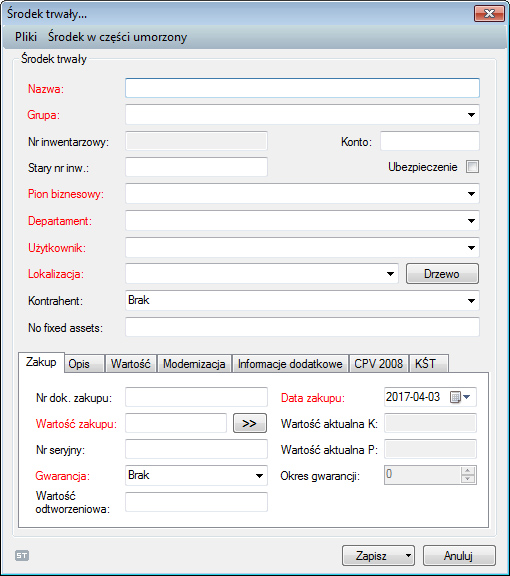
Remember that until an entered asset is approved by an authorized person, it will not be included in stocktaking and depreciation.
6.2. Adding low-value assets
To enter a low-value asset into the program:
- Select „Dodaj środek niskocenny”.
- In the „Środek niskocenny” form, fill in the individual fields (fields marked in red are required).
- Save the entered data. (After clicking „Zapisz”, by default one asset is saved in the program. The subsection „Adding multiple assets” describes how to enter multiple assets of the same type into the program.)
Remember that until an entered asset is approved by an authorized person, it will not be included in stocktaking.
6.3. Adding intangible / legal assets
To enter an intangible / legal asset into the program:
- Select „Dodaj środek niematerialny / prawny”.
- In the „Środek niematerialny / prawny” form, fill in the fields (fields marked in red are required). Data that can be selected from drop-down lists is defined in the „Słowniki” tab.
- Save the entered data. (After clicking „Zapisz”, by default one asset is saved in the program. The subsection „Adding multiple assets” describes how to enter multiple assets of the same type into the program.)
Remember that until an entered asset is approved by an authorized person, it will not be included in stocktaking.
6.4. Adding multiple assets
The program allows entering multiple assets of a single type.
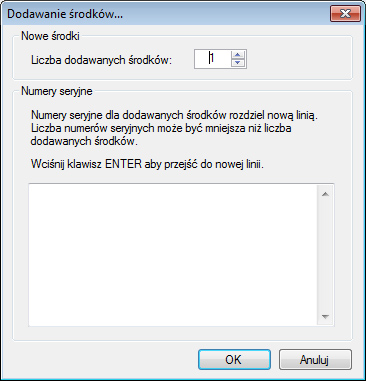
To do this, enter the selected asset according to points 1–2 detailed in the previous chapters. To save multiple assets of the same type, expand the „Zapisz” button menu and select the „Dodaj wiele środków trwałych” option.
Note! This operation will not be possible if you manually enter the inventory number. To add multiple fixed assets, leave this field empty.
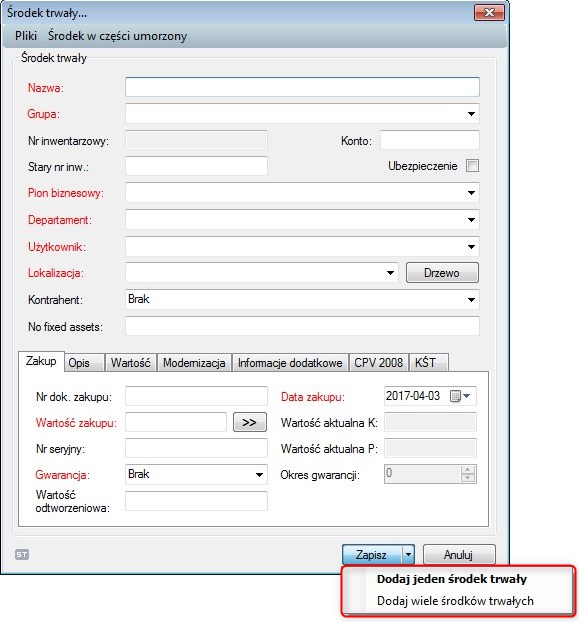
In the „Dodawanie środków” window, specify how many assets are to be entered and enter their serial numbers (after each number press Enter, so that each number is entered on a separate line).
6.5. Approving a new fixed / low-value / legal asset
Every asset entered into the program must be approved by an authorized person. Until a given asset is approved, it will not be included during stocktaking / depreciation. Furthermore, approving a fixed / low-value / legal asset means that:
- the asset is assigned an inventory number (if the option to generate them automatically is active),
- the fixed / low-value / legal asset window changes – new tabs appear in it with new, previously unavailable functions.
To approve a newly entered asset:
- In the program menu, expand the „Środki trwałe, niskocenne, prawne” tab.
- In the program work area, select the assets to be approved (unapproved assets are marked in gray).
- Select the „Zatwierdź zaznaczone” option.
- Confirm that you want to approve the selected assets.
Another way to perform the same operation is to use the reminder window – if any unapproved assets are stored in the program, a reminder window will appear at the next program startup indicating the need to approve them. To approve selected assets and contractors, or to see the results of automatically performed depreciation, click „Pokaż” and then approve the selected data.
Another way to approve an asset is to open the fixed asset form and click the „Zatwierdź” button in it.
After an asset is approved, the „Środek trwały” (low-value / legal) window changes – new elements with new, previously unavailable functions appear in the menu bar.
6.6. Adding / editing / deleting / opening files attached to a given asset
To perform one of the operations listed above:
- Open the window of an approved fixed / low-value / legal asset (to do this, in the program work area double-click the selected asset, or just select it and in the program menu click „Modyfikuj” [Środki trwałe, niskocenne, prawne → Modyfikuj]).
- In the menu of the selected asset form, click „Pliki”.
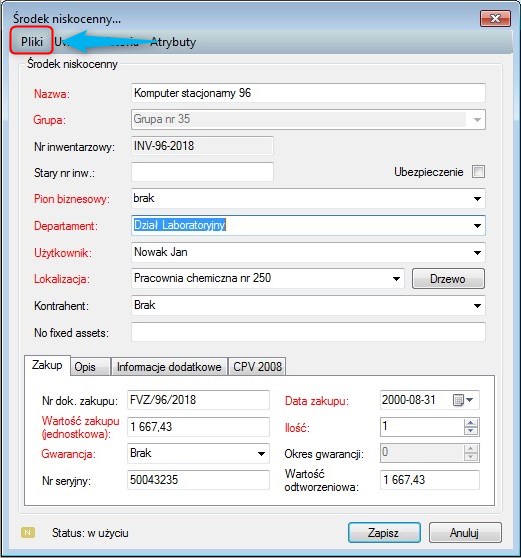
- In the new window, select one of the options: add / edit / delete / open (when choosing edit, delete, or open, first select the desired file in the list, then choose the operation to be performed).
6.7. Adding notes to an asset
To add notes to a fixed / low-value / legal asset form:
- Open the window of an approved fixed / low-value / legal asset (to do this, in the program work area double-click the selected asset).
- In the form's menu bar, select „Uwagi”.
- In the „Uwagi” form, click „Dodaj”, enter the text, then confirm it by clicking „Zapisz”.
6.8. Disposing of a fixed / low-value / legal asset
To dispose of a selected fixed / low-value / legal asset:
- In the program menu, select the „Środki trwałe, niskocenne, prawne” option.
- In the work area of the program's main window, select the asset intended for disposal.
- In the program menu, click „Zlikwiduj”.
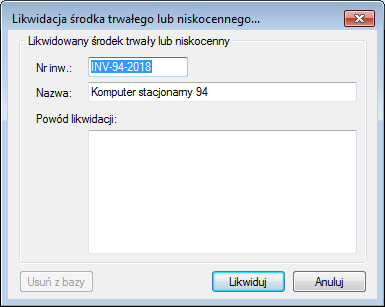
- A new window („Likwidacja środka trwałego lub niskocennego”) will appear, in which you should enter the disposal reason.
- Confirm the disposal by clicking „Likwiduj”.
The asset has been disposed of. However, it does not disappear from the system; it is still present in it (marked in pink in the program work area), but is not included in stocktaking and depreciation. For disposed assets, the system automatically generates an additional „Powód likwidacji” tab, which contains information such as: the disposal reason, who disposed of the asset, and when.
6.9. Printing the list of assets stored in the program
To print the list of assets stored in the program (or only selected data):
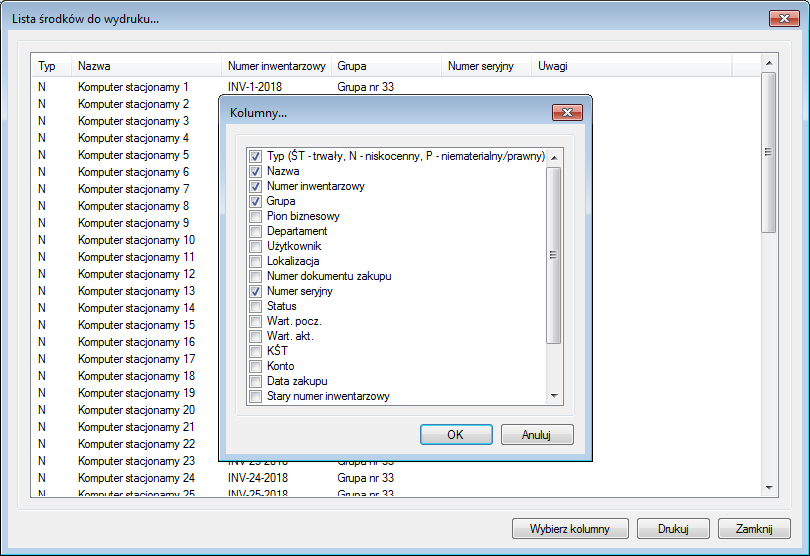
- In the program menu, select „Środki trwałe, niskocenne, prawne”, then „Drukuj listę środków”.
- Print the entire list or only selected columns (to choose columns, click „Wybierz kolumny”, then check the ones to be printed).
- Click „Drukuj”.
6.10. History of a fixed / low-value / legal asset
All operations performed in the program are recorded. They can be reviewed using the „Historia środka trwałego / niskocennego / prawnego” option.
6.11. Viewing asset history
To review the history of operations performed in the program:
- Open the form of the selected asset (in the program work area, double-click the selected asset).
- In the form's menu bar, click „Historia”.
- Select the categories the history is to concern (define, for example, a time range, the type of operations performed, or the user making the changes).
- Click „Odśwież”.
6.12. Printing asset history
To print the history of operations performed on a selected fixed / low-value / legal asset:
- Open the window with the operation history (how to do this is described in the previous point).
- Click „Drukuj”.
- A print preview window will appear; if everything is correct, click „Drukuj”.
7. Depreciation
HDF Inwentaryzacja 6 allows specifying the depreciation method. Using the application, you can perform depreciation that is:
- straight-line,
- declining-balance,
- one-time.
Depreciation can be performed „on demand” by the user, or automatically on days chosen by the user. The user can create a schedule for automatic depreciation runs for the whole year. Furthermore, the program allows depreciation of all approved fixed assets or only those selected by the user. A list of depreciation rates is provided in the program by default – they can be edited, deleted, or new ones added.
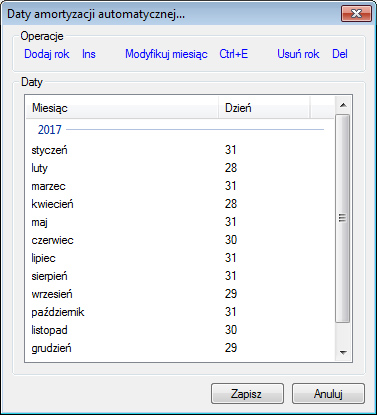
7.1. Automatic depreciation – defining the date it is performed
For the program to perform automatic depreciation of fixed assets, you need to define the days on which this operation is to be carried out. To do this:
- In the program menu, open the „Opcje” tab, then select „Amortyzacja automatyczna” [Opcje → Amortyzacja automatyczna].
- The „Daty amortyzacji automatycznej…” window will open.
- Using the „Dodaj rok”, „Modyfikuj miesiąc”, „Usuń rok” buttons, define the automatic depreciation dates.
7.2. Depreciation of one (several or all) fixed assets
If the goal is to run depreciation of several (all) fixed assets:
- In the program work area, select the fixed assets to be depreciated. If you want to depreciate all fixed assets, select them all by clicking the square in the top-left corner of the work area.
- Click „Amortyzuj” [Środki trwałe, niskocenne, prawne → Amortyzuj].
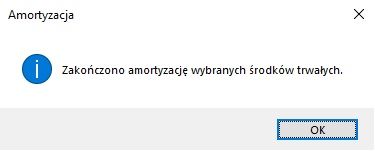
- The „Amortyzacja” window will appear, indicating that depreciation of the selected fixed assets has been completed.
7.3. Fixed asset depreciation history / printing depreciation history
To review the depreciation history of a selected fixed asset:
- Open the fixed asset form (by double-clicking the selected fixed asset).
- Click the „Tabela amortyzacji” tab in the menu bar of the selected fixed asset's form.
- In the new window, select the checkboxes.
- Click „Odśwież”.
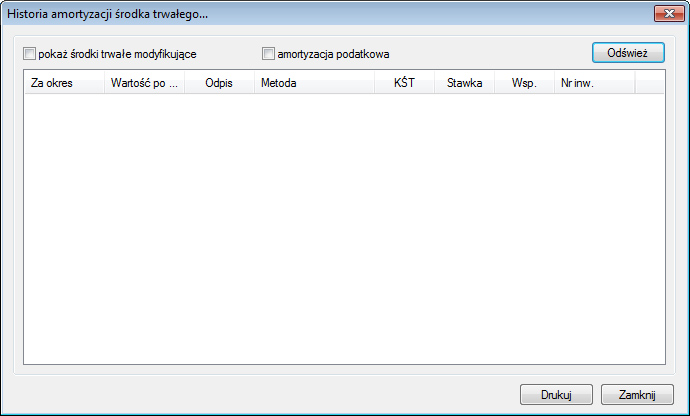
The generated depreciation history report can be printed. To do this, in the „Historia amortyzacji środka trwałego” window click „Drukuj”.
8. Stocktaking
HDF Inwentaryzacja 6 allows stocktaking to be performed in two ways:
- using a terminal,
- entering the data directly into the application installed on the PC.
You can choose an option that allows stocktaking of either all fixed and low-value assets or only those selected by the user.
8.1. New stocktaking
To start a new stocktaking:
- In the program menu, select „Inwentaryzacja”.
- If only selected assets are to be subject to stocktaking, select them. If all assets are to be subject to it, click the square in the top-left corner of the work area.
- In the program menu, click „Uruchom nową”.
- In the new window, enter the stocktaking name.
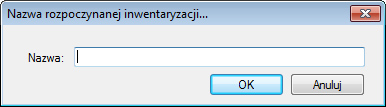
- The „Inwentaryzacja” window will open – here, in the „Inwentaryzacja” tab, select the stocktaking type: automatic, performed using a terminal („Eksport do terminala” / „Import z terminala”), or without one (the „Ręcznie” button).
8.2. Automatic stocktaking
Automatic stocktaking is performed using a terminal on which HDF Inwentaryzacja has been installed.
Performing an automatic stocktaking proceeds as follows:
- Start a new stocktaking [Inwentaryzacja → Uruchom nową] or open a stocktaking started earlier but not finished [Inwentaryzacja → Uruchom niezakończoną].
- In the „Inwentaryzacja” window, open the „Inwentaryzacja” tab.
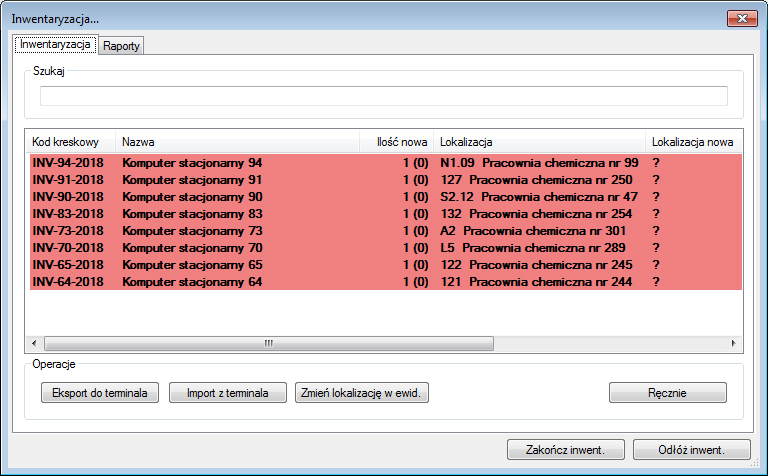
- Click „Eksport do terminala”.
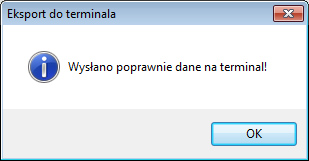
- In the application on the terminal, select option 3 – „Pobierz nowe dane”.
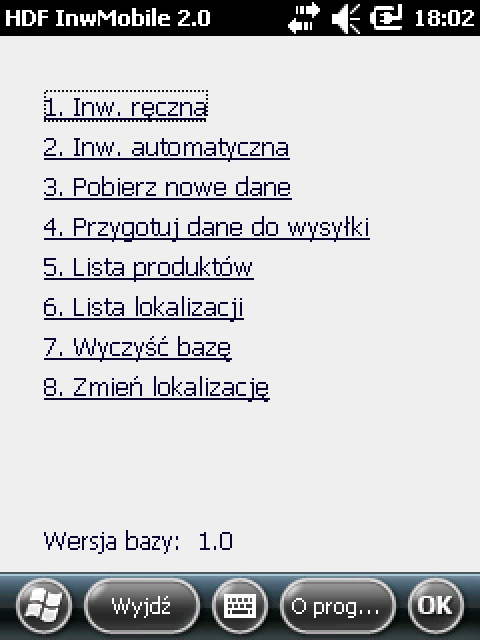
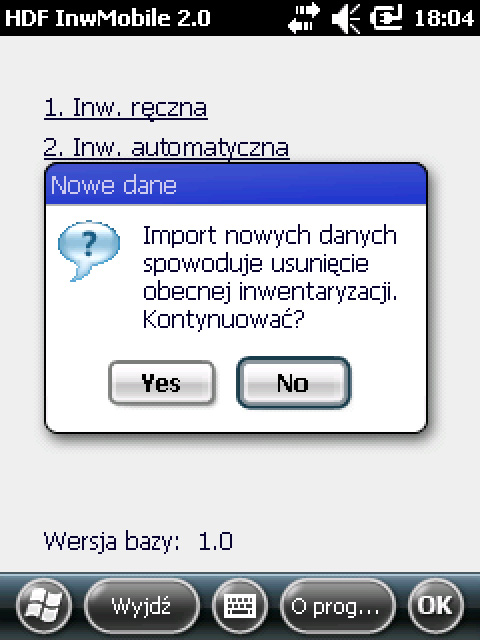
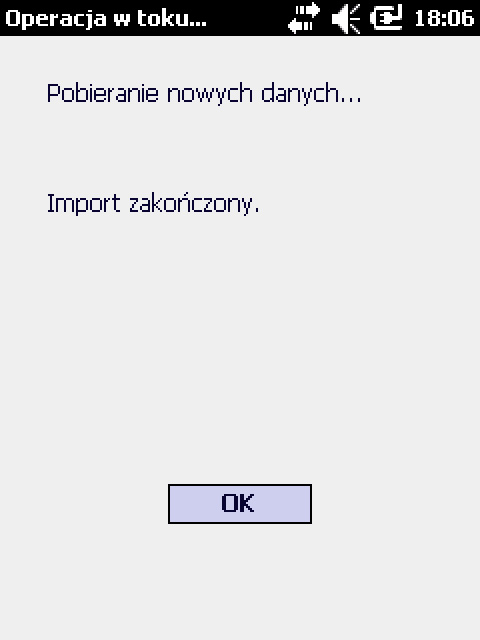
- If a window appeared on the terminal informing you that the data has been downloaded, then (on the terminal) select option 2 – „Inwentaryzacja automatyczna”, then specify the location needed to perform the stocktaking and set it as the current one.
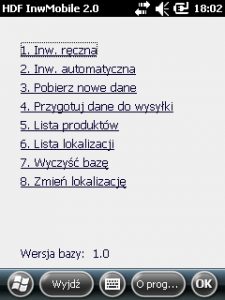
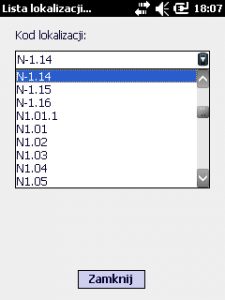
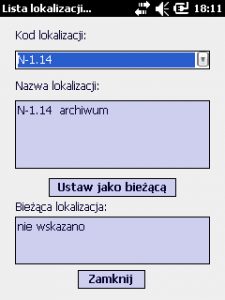
- Scan the barcodes of the assets to be inventoried with the terminal, then on the terminal select option 4 – „Przygotuj dane do wysyłki” and place the terminal in the communication dock connected to the PC.
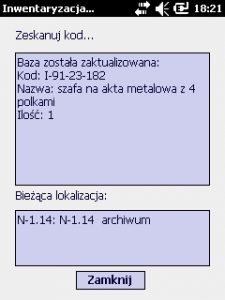
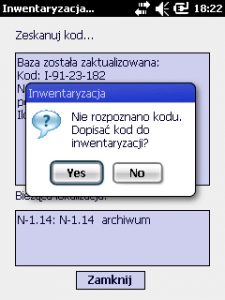
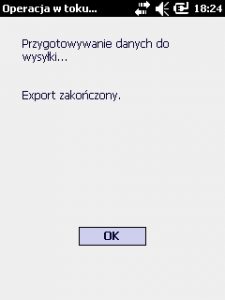
- In the application on the PC, in the „Inwentaryzacja” window, select „Import z terminala” (if the location of a given asset has changed, to enter it into the main records click the „Zmień lokalizację w ewidencji” button).
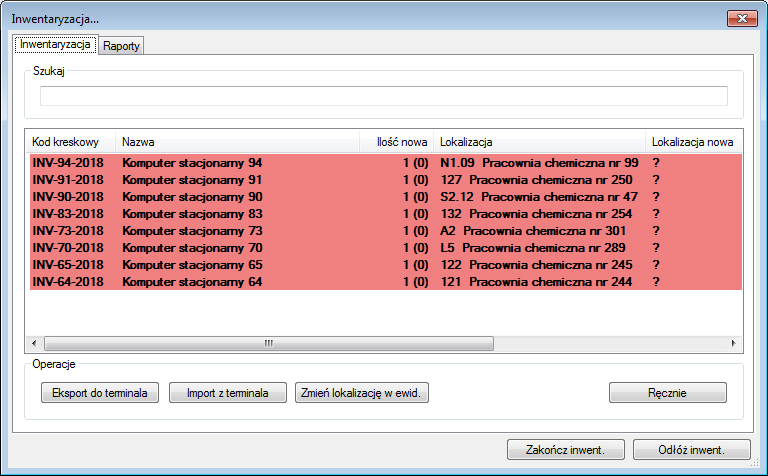
- To see the report from the stocktaking just performed, go to the „Raporty” tab.
- Finish the stocktaking by clicking „Zakończ”, or set it aside for later completion by clicking „Odłóż inwentaryzację”.
8.3. Stocktaking without a terminal (performed only on the PC)
During manual stocktaking, all data is entered into the application manually. Performing a manual stocktaking proceeds as follows:
- Start a new stocktaking [Inwentaryzacja → Uruchom nową] or open a stocktaking started earlier and not finished [Inwentaryzacja → Uruchom niezakończoną].
- In the „Inwentaryzacja” window, open the „Inwentaryzacja” tab.
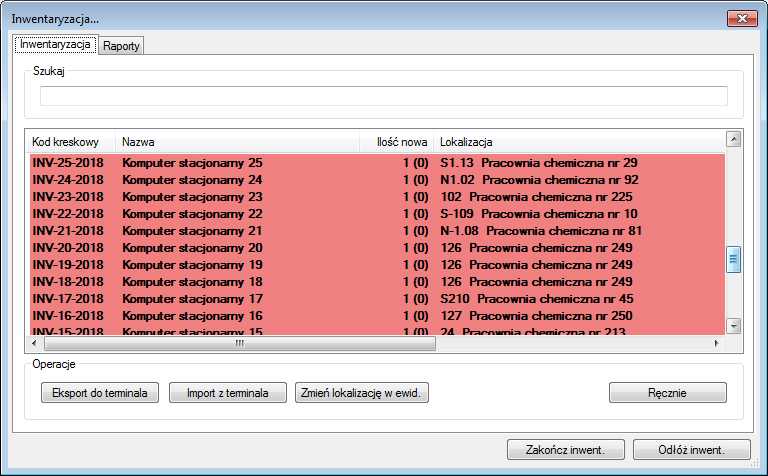
- Click the „Ręcznie” button (marked in the illustration below).
- From the asset list, double-click to select the asset for stocktaking.
- A new window will appear, in which you should enter the quantity of assets held and (optionally) change their location.
- Confirm the changes by clicking „OK”.
- Repeat steps 4–6 as many times as there are assets on the list.
- The stocktaking can be finished by clicking „Zakończ”, or saved for later completion by clicking „Odłóż inwentaryzację”.
8.4. Continuing a stocktaking already started
When performing a stocktaking, the program's functions for continuing a stocktaking started earlier are also useful. To continue a stocktaking started earlier:
- In the program menu, select „Inwentaryzacja”, then „Uruchom niezakończoną”.
- In the list of unfinished stocktakings, select the one to be continued and click „Wybierz”.
- The window of the unfinished stocktaking will open, which you can now continue.
8.5. Deleting unfinished stocktakings
You can always delete stocktakings that are no longer needed from the list of unfinished stocktakings. To do this:
- In the program menu, select „Inwentaryzacja”, then „Usuń niezakończoną”.
- In the list of unfinished stocktakings, select those to be permanently deleted and click „Wybierz”.
- Confirm that you want to delete the unfinished stocktaking.
8.6. Stocktaking history
To review the history of performed stocktakings (and the details of each of them):
- In the application menu, select „Inwentaryzacja”, then click „Historia inwentaryzacji” [Inwentaryzacja → Historia inwentaryzacji].
- The „Historia inwentaryzacji” window will open, containing a list of performed stocktakings along with the dates on which they were carried out.
To review the details of a selected stocktaking:
- In the „Historia inwentaryzacji” window, in the list of performed stocktakings, select the one whose details you want to review.
- Click „Pokaż” – the stocktaking window will open, listing the assets that were subject to the stocktaking, together with the stocktaking reports.
9. Reports
HDF Inwentaryzacja 6 allows generating a wide range of depreciation and stocktaking reports according to user-defined criteria.
9.1. Report from a selected stocktaking
To review the report concerning one selected stocktaking:
- In the list of performed stocktakings, select the one whose details interest you and click „Pokaż” [Inwentaryzacja → Historia inwentaryzacji → Pokaż].
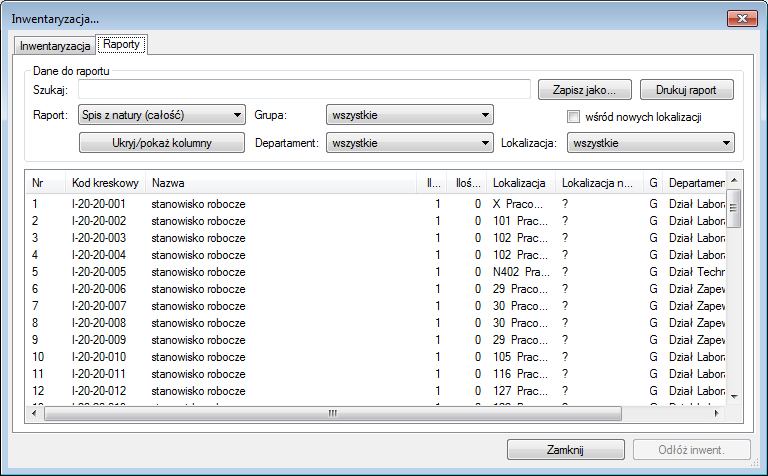
- In the „Inwentaryzacja” window, go to the „Raporty” tab.
- Define the criteria by which the report will be generated. The user can choose:
- the report type (full physical count, summary of stocktaking discrepancies in warehouses, status before stocktaking, mismatched quantities, location changes, matching quantities, status after stocktaking, physical count),
- group (defines which asset groups are to be included when generating the report),
- location (specifies which locations will be included when generating the report),
- department (specifies which departments / divisions will be taken into account when generating the report).
- Save the report and/or print it by clicking „Zapisz jako” and/or „Drukuj”.
9.2. Selecting columns for printing
A stocktaking report may contain only those data columns that the user selects (these will also appear in any printout of the report).
To specify which columns the report is to contain:
- In the „Inwentaryzacja” window, in the „Raporty” tab, click the „Ukryj/pokaż kolumny” button [Inwentaryzacja → Historia inwentaryzacji → Pokaż → Raporty → Ukryj/pokaż kolumny].
- A window with a list of columns will appear – check those the report should contain, then click „OK”.
- In the work area of the „Inwentaryzacja” window, a report will appear containing only the columns the user selected. To print the report, click „Drukuj raport”; to save the report to a file, click „Zapisz jako”.
9.3. Renaming a report
The „Raport” drop-down list contains the default report type names. The user can change them freely to better suit their needs. To do this:
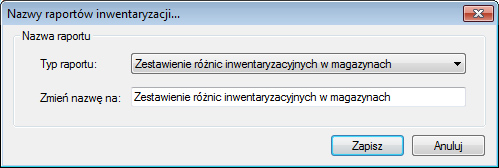
- In the program menu, in the „Opcje” tab, select „Raporty z inwentaryzacji” [Opcje → Raporty z inwentaryzacji].
- In the „Nazwy raportów inwentaryzacji” window, select from the drop-down list the report type whose name is to be changed, and enter the new name in the field below.
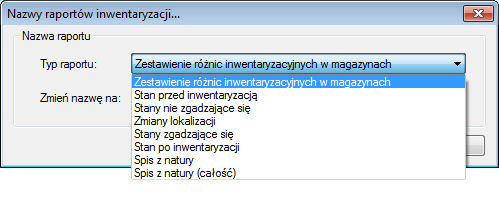
- Confirm the entered data by clicking „Zapisz”. The report type name has now been changed.
9.4. Depreciation reports
Depreciation reports can be created for a user-selected period and can optionally also include tax depreciation.
To generate a depreciation report:
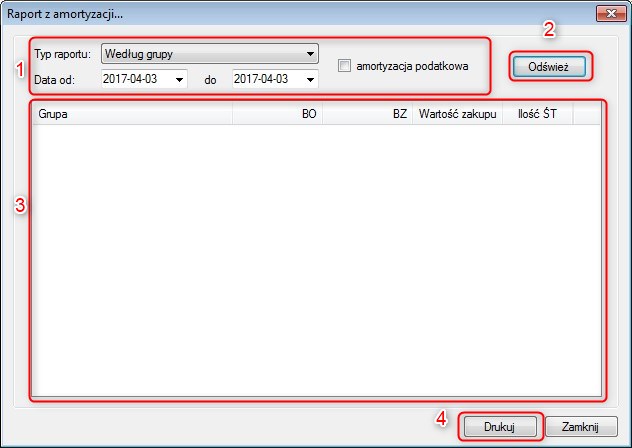
- Open the „Raport z amortyzacji” window [Raporty → Raport z amortyzacji].
- Specify the criteria to be included when generating the report (fill in the fields in the frame marked no. 1).
- Specify the report type (report by group, report by department, report by business division).
- Define the period the report is to cover.
- Specify whether the report is to include tax depreciation (checkbox checked) or not (checkbox empty).
- Click the „Odśwież” button (marked no. 2 in the illustration).
- In the area marked no. 3, a report will appear reflecting the criteria selected by the user.
- The report can be printed by clicking „Drukuj” (the button marked no. 4 in the illustration).
The „Zamortyzowane środki trwałe” report contains a list of assets depreciated within a user-defined period.
To generate this report:
- Open the „Zamortyzowane środki trwałe” window [Raporty → Zamortyzowane środki trwałe].
- Specify the time to be included in the report and decide whether the report is to include tax depreciation or not.
- Click „Odśwież”.
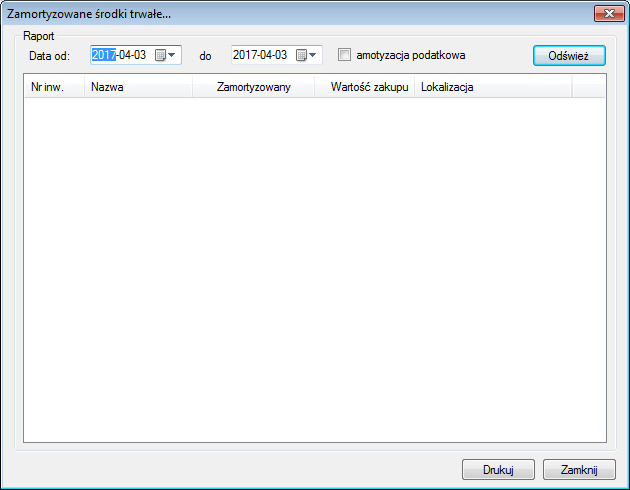
To print the report, click „Drukuj”.
9.5. Depreciation tables
Fixed asset depreciation tables contain a list of assets depreciated in a given year and assigned to a user-selected group. The tables contain data from depreciation carried out in successive months of the defined year, plus a summary in the form of an opening and closing balance.
To generate the appropriate depreciation table:
- Open the „Tabela amortyzacji środków trwałych” window [Raporty → Tabela amortyzacji].
- Define the asset group and year – this data will be included in the report (you can also check the option to include tax depreciation in the report).
- Click „Odśwież”.
9.6. Disposed assets – report
To generate a list of assets disposed of within a given period:
- Open the „Zlikwidowane środki trwałe, niskocenne, prawne” window [Raporty → Zlikwidowane środki].
- Define the period in which the assets were disposed of (the field marked no. 1 in the illustration).
- Click „Odśwież” (the field marked no. 2 in the illustration).
To review the disposal reason for a selected asset, select it in the list, then click „Powód likwidacji” (the field marked no. 3 in the illustration). A window will open in which the disposal reason was recorded (the field marked no. 4 in the illustration).
Printing the report will begin after clicking the „Drukuj” button (the field marked no. 5 in the illustration).
9.7. Employee asset holdings – report
The „Stan posiadania pracownika” report includes the assets for which the selected user is responsible. To generate it:
- Open the „Raport stanu posiadania pracownika” window [Raporty → Stan posiadania pracownika].
- Fill in the form: specify the user the report is to concern and the status of the assets it is to include (all / in use / disposed / awaiting approval).
- After selecting the criteria, click „Odśwież”.
9.8. Assets purchased within a given period
The report of assets purchased within a given period contains a list of assets of a selected type (ŚT, N, P) purchased within a user-defined period. The report also includes additional data such as: the inventory number of the given asset, its name, the purchase date and price, the person responsible for the asset, the asset's location, the department, the business division, and the asset status.
To generate the report:
- Open the „Raport środków zakupionych w danym okresie” window [Raporty → Środki zakupione w zadanym okresie].
- Define the categories (period and asset type) to be included in the report.
- Click „Odśwież”.
To print the report, click „Drukuj”.
9.9. Importing assets from a text file (.txt, .csv)
To import data stored in a text file into HDF Inwentaryzacja 6:
- Prepare a text file with the data. All records in the text file should have the following structure:
asset type; name; group; business division; department; user (last name first name); location; contractor *; purchase document no. *; purchase date yyyy-mm-dd; purchase value [K]; purchase value [P]; warranty *; warranty period; serial no. *; quantity **
Notes:
*– the field may have an empty value.**– the field applies only to low-value and legal assets; for low-value assets there should be a number greater than 0; for fixed assets it is ignored.- asset type – ŚT or ST – fixed asset, N – low-value, P – intangible/legal.
- group; business division; department; user (last name, first name); location; contractor – these are names occurring in the application; letter case does not matter.
- warranty – warranty code, available values: brak, serwis, standard, inna. Warranty and warranty period are ignored for intangible/legal assets.
- purchase value [K] – the accounting part.
- – the tax part (for low-value and legal assets this value is ignored). purchase value [P]
- From the application menu, select „Środki trwałe, niskocenne, prawne”, then click „Importuj środki”.
- Select the file with the data to import and press „Dalej”.
- Click „Importuj”.
9.10. Exporting data to a text file / Microsoft Excel
To export data stored in HDF Inwentaryzacja 6 to a text file or Microsoft Excel, select the „Eksport do…” button from the application's top task bar.
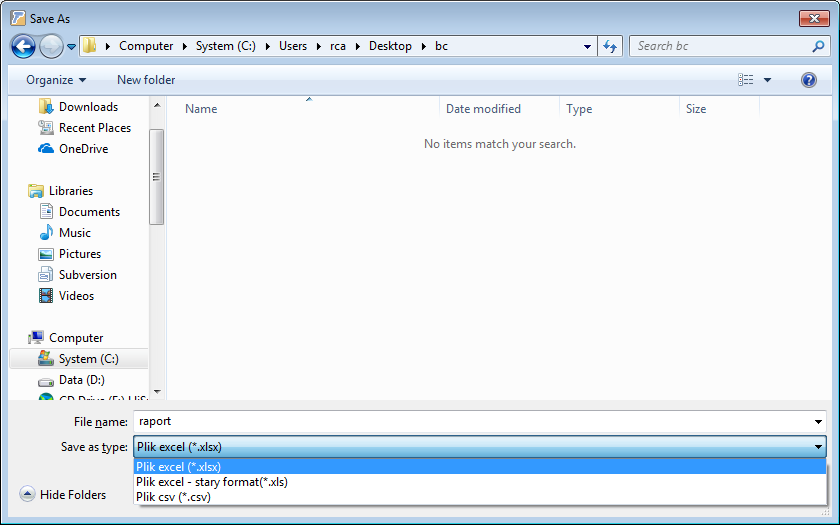
The program will redirect us to a save window in which you should specify the file type to which the data export is to be performed.
To export the data to a file, also choose where to save it, then click „Zapisz” at the bottom of the screen.
10. Printing labels
10.1. Printing labels for assets
To print labels for assets:
- In the program menu, select „Środki trwałe, niskocenne, prawne”.
- Select the desired assets if labels are to be printed only for them.
- Click „Drukuj etykietę”.
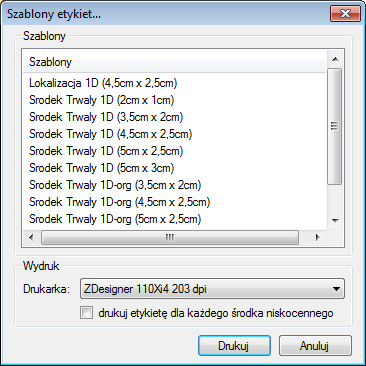
- Select a label template from those offered.
- Select a printer and confirm that you want to print („Drukuj”).
10.2. Printing labels for locations
To print labels for locations:
- In the program menu, select „Środki trwałe, niskocenne, prawne”.
- Click „Drukuj etykiety lokalizacji”.
- Select the locations for which labels are to be printed.
- Select a label template from those offered.
- Confirm that you want to print by clicking „OK” in the „Drukowanie” window.
11. Documents
The OT, LT, MT documents, as well as the asset list or asset card, can be printed by going to the application's main menu, to the „Środki trwałe, niskocenne, prawne” tab.
To print an asset transfer protocol:
- In the application menu, select „Środki trwałe, niskocenne, prawne”.
- In the asset list, select the one for which the transfer protocol is to be printed.
- Click „Drukuj MT” [Środki trwałe, niskocenne, prawne → Drukuj MT].
- Printing the document will begin after clicking the „Drukuj” button.
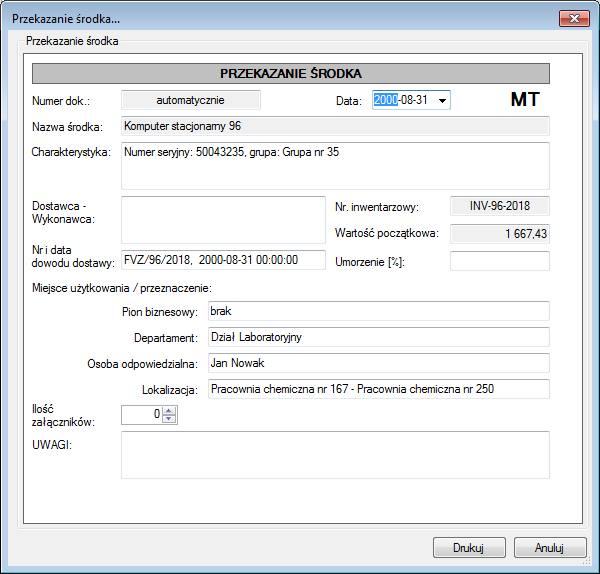
The asset transfer document includes space for the workplace stamp, all details of the transferred asset, notes, and the signature of the person entrusted with its care.
To print the remaining documents, perform the analogous steps.
For the program to place the company data automatically in every document, you should first define this data. To do this:
- In the program menu, select „Opcje”, then „Ustawienia firmy i raportów”.
- In the „Ustawienia firmy i raportów” window, fill in the individual fields according to the pattern:
Line 1: Full company name Line 2: Street, building and unit number Line 3: Postal code and city Line 4: Country
- Check „użyj tych danych w dokumencie OT, LT i MT w miejscu pieczątki zakładu pracy”.
- Click „Zapisz”.